We work with over 100 clients on SEO at The Media Captain, and it’s not an exaggeration to say that Google Chrome extensions have saved numerous campaigns by flagging critical issues and revealing key insights.
The best part is that Chrome extensions for SEO are literally right there in your browser.
In one click, you can get valuable information on core web vitals, meta tags and keywords without switching tabs.
After testing several tools over the years, we’ve narrowed the list down to seven essential tools you need to enhance modern SEO/AEO campaigns. We’ll show you how to use them with real client examples.
7 Best Google Chrome Extensions for SEO (Tested)
Here are the seven best SEO extensions for Chrome that we’re loving right now.
1. Detailed SEO Extension
What it does: Gives you an instant on-page SEO snapshot. Metrics like title tags, meta descriptions, heading structure, indexability, canonical tags (and more) are available right at your fingertips. Even more, the Detailed extension recently released four new features that cover duplicate content, social media previews, images with/without alt text and streamlined external link analysis.
Why we use it: It’s often our first stop when jumping onto a client’s site. Rather than diving into a tool or crawling the whole domain, we can get a read on any page in seconds.
Real example: While doing research on our client, Luxe Redux Bridal, we used Detailed SEO and discovered that a core location page wasn’t indexable. This was a major find! The amount of traffic you could be losing out on from an unindexed page is immense. The extension flagged it immediately, and we took the appropriate action.

2. Get FireShot
What it does: Captures full-page screenshots and saves them as PDFs or images.
Why we use it: We build a lot of web page mock-ups for clients in Claude, and Claude doesn’t allow the artifact to be shared externally. This is why FireShot is a huge tool for us. We simply download the HTML, open it in the browser, and use FireShot to capture the full page as a PDF. That PDF becomes the rough mock-up we send to the client. We also use it for other tasks, too, like capturing entire email newsletters in one shot.
Note: Some of our team members also use GoFullPage, which basically does the same thing as FireShot, and can work as a backup if FireShot starts acting glitchy.
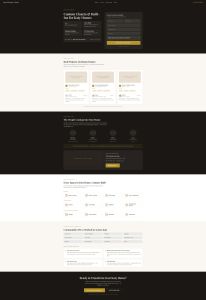
Real example: Below is a screenshot via FireShot of a full service area page mockup for our client, SpaceManager Closet. We call this a rough mock-up, send it to our client for approval, and then send it to our designer to put together a more polished design.
3. GMB Everywhere
What it does: Surfaces Google Business Profile data, including categories and review counts, directly in search results for any listed business.
Why we use it: Understanding how competitors are categorized on Google is a huge part of a local SEO strategy. GBP categories, particularly the primary category, directly impact what searches you show up for. This extension lets you see exactly what competitors have selected without having to dig around. It’s great for getting a snapshot of the local SEO landscape in your industry.
Real example: Most of our revenue as a marketing agency comes from marketing services, with a smaller portion coming from web design. We strategically chose “Marketing Agency” as our primary GBP category rather than “Website Designer.” When you use GMB Everywhere to look at other marketing firms, you’ll see top-ranking agencies have made the same call. Their primary category reflects the core revenue driver, not every service they offer. You can use secondary categories for other services.
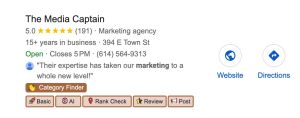
Below is what GMB Everywhere looks like in Google’s local Map Pack. You need to click on the buttons at the bottom of the listing to see the data.
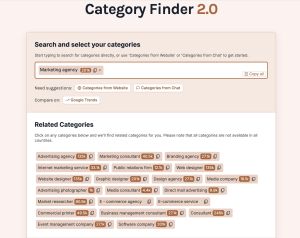
To find categories, click on “Category Finder”, and it will take you into a separate tab, where you will see data on the primary category of the listing as well as related categories for the industry.
4. Keyword Surfer
What it does: Overlays keyword data directly in Google search results. Metrics include estimated monthly search volume, CPC, number of words on ranking pages, and domain traffic for each result.
Why we use it: To get a quick feel for the demand and competition of our target keywords. Having search volume and CPC data, along with key on-page metrics like word count and the frequency of primary keyword usage right in the search results saves a lot of back-and-forth. It gives us a gut-check on competitiveness and search demand instantly without having to open a separate SEO tool like Semrush or Ahrefs.
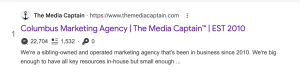
Real example: See below for The Media Captain SERP ranking for “columbus web marketing agency”. It shows position #2, with 22,704 estimated monthly organic visits to the domain, 1,532 words on this specific page and 1 exact-match keyword (i.e., how many times the primary keyword phrase appears on the page). The estimated organic traffic for the domain is not as relevant since it reflects the entire site, but the word count and exact-match keywords metric can give you some on-page direction on how long your content needs to be, and how many times you need to use the primary keyword (this is directional, don’t overdo it with keyword usage).
You can also get an estimated monthly search volume and CPC for specific keywords right in the search bar:

Note: SEO Quake is another option worth looking into for keyword analysis, including keyword difficulty.
5. Lighthouse
What it does: Built into Chrome DevTools, Lighthouse generates an instant report on Core Web Vitals, page speed, accessibility, SEO basics, and best practices.
Why we use it: Core Web Vitals play a role in your success in Google search, and page speed affects more than just SEO. Conversions and the overall user experience are also impacted by Core Web Vitals. Lighthouse makes it easy to pull a report on any page without setting up a tool. It’s especially useful during an SEO audit when you need to prioritize next steps.
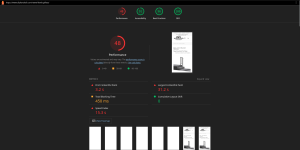
Real example: We’ve used this on a number of client sites. Most recently, running Lighthouse on DIY Handrail’s category pages (see below for results) helped us quickly identify what was slowing them down and where the biggest opportunities were for improvement. Once we have this insight, we assign it to our development team to make necessary updates.
6. Broken Link Checker
What it does: Automatically scans the page you’re on and highlights any broken links, making it easy to spot and fix 404s before they hurt your users or your crawl efficiency.
Why we use it: After a new web project launches or when a site restructure happens, broken links are practically guaranteed. This extension lets you sweep a page in seconds instead of manually clicking through every link.
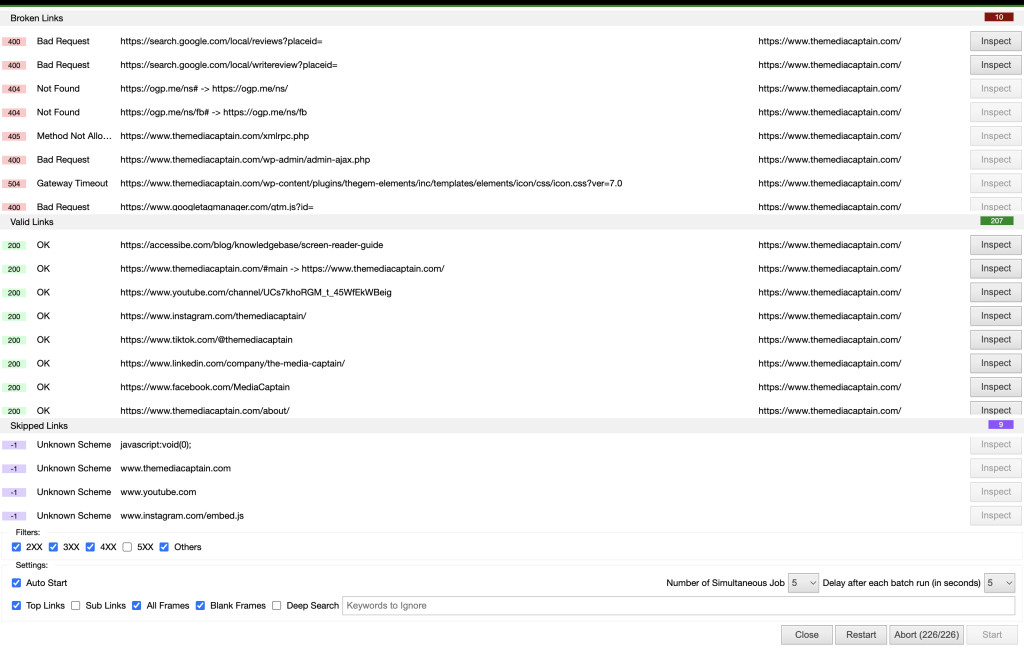
Real example: See below for an example of one of our page results to see what the final analysis looks like. Since the homepage is an essential page that ranks for many important queries, doing a check every now and then to ensure there are no broken links on a core page reassures us that all links are working properly.
7. Claude Extension
Note: This extension is currently in its Beta phase, so there are current limitations with the extension. The extension doesn’t currently save conversations to your main Claude account, it forgets context once you close the tab group, and it requires a paid Claude plan. Expect enhancements to it in the future.
What it does: Claude in Chrome is a browser sidebar that lets you chat with Claude while browsing any website. It can read pages, click buttons, fill forms, extract data, and run multi-step workflows across multiple tabs.
Why we use it: The multi-tab capability is genuinely useful for tedious SEO campaigns. It can work across several pages simultaneously while you stay on what matters most. Basically, it can serve as another set of “eyes” because it literally digs through your tabs with you.
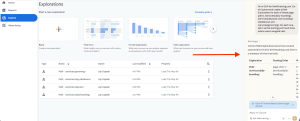
Real example: We recently had Claude pull together GA4 path exploration reports for a client that wanted to see where users navigated after visiting their main service pages. Normally, this would have taken manual work, but with one simple prompt, Claude was able to pull the reports while we worked on other things.
Here’s an example of the report with the Claude prompt on the far right side of the screen:
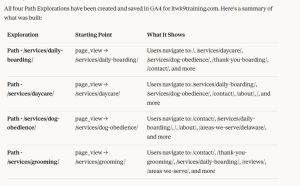
Here’s a summary of what Claude built:
What AI Tools Should You Use in Addition to Chrome Extensions?
Google Chrome extensions for SEO have helped us cut down on time and address issues for clients that needed urgent attention.
Many of the extensions are free to download, so try them out and use them on your next SEO audit to streamline campaigns.
Check out our best AI Tools for marketing agencies to see how you can utilize more tools to increase efficiency with your daily tasks.