Google’s Map Pack gets about 44% of all local clicks on the first page of Google.
It’s no secret why local businesses prioritize top-3 rankings on the Map Pack: it’s valuable real estate that typically populates at the top of Google’s organic local search results.
While many businesses go to great lengths to optimize their Google Business Profile (GBP) to try to rank organically at the top of the Map Pack, local rankings can be competitive and, frankly, inconsistent.
We’ve had clients follow all the best practices (choosing the right categories, generating consistent reviews, adding high-quality photos/videos) and still not achieve desired rankings due to high competition or fluctuating algorithms.
But..there’s a solution if your business is in this situation. You’ll have to pay a price, but it could be worth it for companies that want to ensure prominent placement in the local Map Pack.
In this post, we’ll use our 15+ years of running paid advertising campaigns to give step-by-step instructions on how to run Google Ads on your GBP, with a real client example demonstrating the strategy’s success.
What Are Location Assets in Google Ads?
It’s important to establish a working understanding of location assets in Google Ads before diving into how to set up ads on your GBP.
Location assets (formerly called location extensions) are what attach your company’s physical location information to your ads. This can include your:
- Address.
- A map and the distance to your store.
- A call button.
- Hours of operation.
- Photos.
These assets work across different ad types (Search, Display, YouTube, Google Maps, etc.) to help potential customers find and engage with your physical location.
They are relevant to our discussion today because linking your Google Business Profile to your location assets is what makes your ads eligible to appear in the Google Maps Pack.
They’re also easy to layer into your existing setup.
When the location assets are added at the account level, they don’t need their own budget.
Instead, the clicks and impressions from those location-based ads pull from the existing campaign budgets.
So if someone clicks on the “Directions” or “Call” button that appears via the location asset, that cost comes out of whichever campaign served that ad. There’s no additional budget required.
Important note on budget: While location assets don’t require additional budget since they run on existing campaigns, the campaign itself needs enough daily budget to compete. If a campaign is limited by budget, the location asset rarely gets to show because the campaign runs out of spend before reaching full potential. Budgets vary by business type and campaign, so make sure to watch how your overall budget is being spent.
How to Run Ads on Your GBP: Step-by-Step Guide
Let’s now go through the step-by-step process of running ads on your GBP.
Before you set this up, make sure you:
- Confirm that your Google Ads account has admin access to the GBP. If you don’t have admin access, you can’t link the GBP to Google ads. You will need to be added as an owner or manager on the GBP. See this guide for how to add owners and managers.
- Fully optimize your GBP before linking. All business info, photos, reviews and categories should be updated.
Note: Location data pulls directly from Google Maps and your GBP, so make sure to keep your business information updated.
1. While in Google Ads, navigate to “Assets” on the left-hand side toolbar.

2. Click on “campaigns” (next to the toolbar in the top left corner) to ensure the GBP ads are applied to all campaigns.

3. Click on “Location” assets (circled toward the center right in the screenshot below). You can also hand-select which campaign you want to apply them to.

After clicking the Location tab, select “Our Locations”:
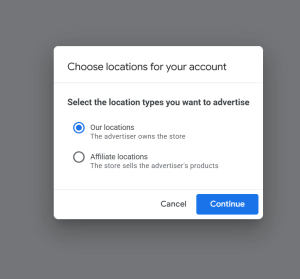
4. Click the blue + button to add a new Google Business Profile.
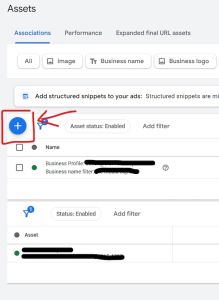
You’ll then select Google Business Profile and choose the Business Profile Manager account.

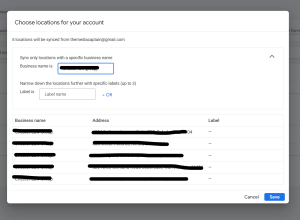
Type the business name and select the locations. Note: You need to type the business name exactly how it’s written in the Google Business Profile.
How GBP Ads Appear on Google
Once you set it all up, this is how your ads will appear in Google’s Map Pack:
Desktop
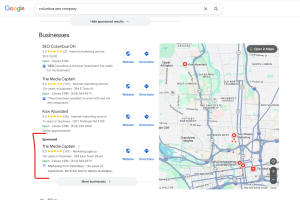
Mobile

Related article: The Rise of Ads in Google’s Local Pack: What Businesses Need to Know
Kenneth’s Salon + Spa — A Multi-Location Example
Kenneth’s Salon + Spa, a multi-location client of ours in Ohio, illustrates how running Google Ads on your GBP can be beneficial for your business.
Let’s take a look at their ad data:
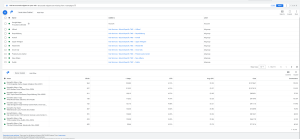
There are a few important things to highlight in the data:
- Upper Arlington is the top-performing location, and the ad drove 964 clicks and 122 conversions at a $1.33 CPC, which is strong.
- The suburb-specific ad group structure shows how granular targeting by location improves performance. Most locations are pulling 4%+ CTR, which is above average for local search ads.
- Each location gets its own asset, its own data, and you can see clearly which areas are performing well.
Key takeaway: Structuring location assets by individual location gives you actionable performance data that shows where your budget is working (and where it isn’t). This can be extremely valuable for multi-location businesses like Kenneth’s.
4 Optimization Tips to Follow So Your GBP Ads Pay Off
Here are a few tips to get the most bang for your buck when running Google Ads on your GBP:
- Treat your GBP as part of your ad creative. Your ad is pulling directly from your GBP. If your profile is incomplete, you have outdated hours or old photos, this is affecting your ad’s quality. Make sure your primary category is accurate, your photos are updated and you’re actively responding to reviews.
- Apply assets at the right level. Most businesses will likely apply location assets at the account level, but if you’re running a campaign that is not locally-focused, you can apply them more selectively. Audit your campaigns before applying assets account-wide and consider excluding any campaigns where local intent isn’t part of the goal.
- Use location-level data to diagnose problems, not just celebrate wins. We all love seeing high clicks and conversions, but don’t just use location performance to identify wins. Use it to find what’s not working. If a location is getting impressions but low clicks, the ad might be showing to the wrong audience. If you’re seeing strong clicks but low conversions, your landing page might be the issue. Monitor your data regularly to gather insights.
- Structure ad groups by location for cleaner data (as illustrated by Kenneth’s example). This will make for clearer attribution, easier budget reallocation and the ability to write ad copy tailored to each area you’re targeting.
Organic vs. Paid Map Pack Placement
Before wrapping this up, there’s a strategic component to paid placements in the Map Pack that must be addressed.
Paying for placement in the Map Pack is likely not a sound long-term strategy for companies with limited budgets.
Here’s a quick summary of who should, and shouldn’t, pay for ads in the Map Pack.
When paid makes sense
- You’re in a competitive market where organic map pack spots are locked up by established competitors.
- You’re a newer business without enough reviews or history to rank organically.
- You need immediate visibility for a promotion or new location.
When organic is enough
- Your GBP already ranks consistently in the top three.
- Your market isn’t heavily contested.
- Your budget is better spent elsewhere.
You can think of paid Map Pack placement as a bridge: a way to buy visibility while you build the organic authority to earn it.
If you’re a company that falls into the “When paid makes sense” category, use GBP best practices to increase organic rankings while using paid ads to close the initial invisibility gap.
Creating a synergistic strategy between SEO and PPC can be a smart play for new companies or those operating in a highly competitive landscape.
If you’re a new business, watch the video below for how to rank your GBP:
Reap the Benefits of GBP Ads for Your Next Campaign
It’s essential for local businesses to show up prominently on Google’s Map Pack. By running ads on your GBP:
- You can appear at the top of the map pack as a sponsored result even if your organic local ranking isn’t strong enough to get you there naturally.
- You control when you show up. Organic map pack visibility depends on Google’s algorithm. This is paid, so you’re buying a consistent presence.
- You get performance data at the location level, so you can see which locations are driving clicks and conversions.
To reiterate, no additional budget is required since it layers onto your existing search campaigns rather than requiring a separate campaign or spend.
For local businesses or multi-location brands struggling to achieve consistent visibility in the Map Pack, this strategy could be a game-changer for your business.
We’ve helped several clients maximize ROAS by running successful and intentional Google Ad campaigns. Reach out if you need help setting up or optimizing your GBP ads.