We moved 151 active WooCommerce subscriptions from one store to another, each with its own WooPayments account, and 149 came across with working cards and no customer action. The subscriptions themselves were the easy part. Moving the right to charge each customer’s saved card was not.
Here’s the situation. For 10 years, we ran DermWarehouse, a skincare store built on WooCommerce. After DermWarehouse joined forces with Dermstore, DermWarehouse.com was set to redirect to Dermstore’s site. We kept the Park Perfection brand as part of the deal, so every active subscription for the products Park Perfection’s store would carry had to move from DermWarehouse to Park Perfection’s own WooCommerce store.
This post walks through exactly how we did it, what broke along the way, and the checklist we’d use again.
Why this is harder than it looks
Subscriptions can move between WordPress sites. Charge rights cannot, at least not without help from the payment gateway.
A WooCommerce subscription record is just data: the customer, the product, the billing interval and the next payment date. Export it from one store, import it into another, and the record shows up fine. What doesn’t come with it is the saved card. Each WooPayments account sits on its own Stripe account, and a card saved in one Stripe account can’t be charged from another.
So the real migration has two parts:
- Move the subscription records from the old store to the new one. You control this with export and import scripts.
- Move the saved cards from the old Stripe account to the new one. Only the payment provider can do this, through a card copy between accounts.
If you only do the first part, every imported subscription fails on its next renewal, and customers get asked to re-enter their card. That’s the outcome we set out to avoid.
Scope the migration before you write any code
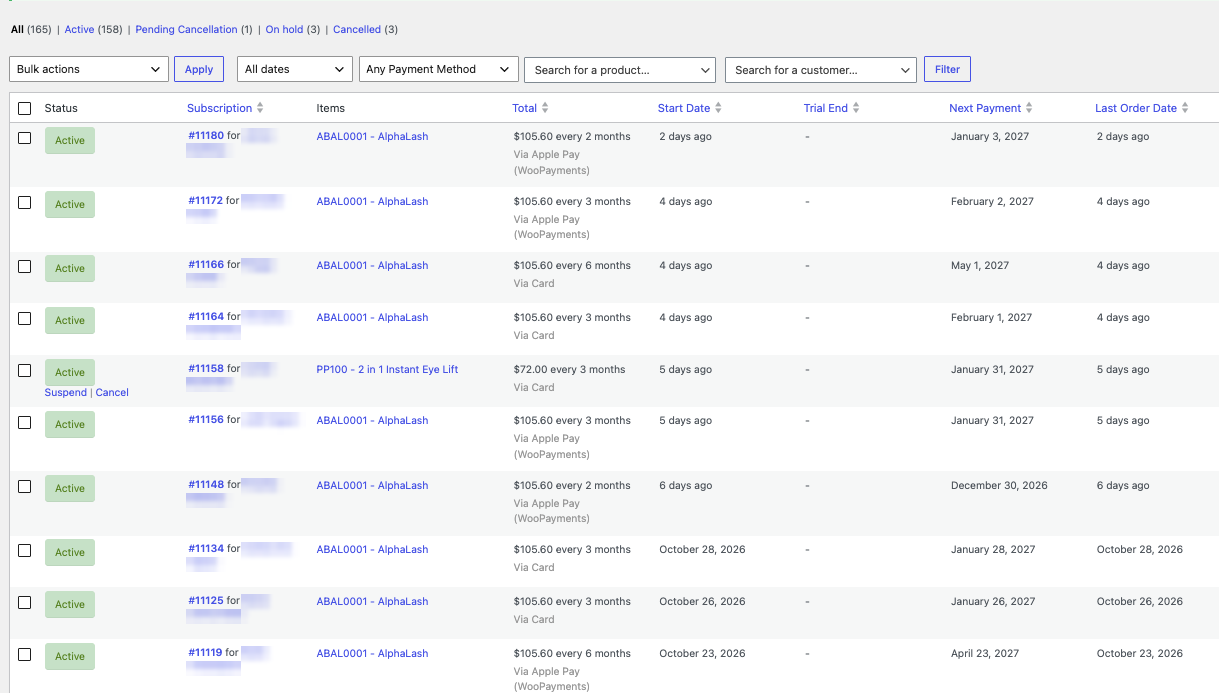
We didn’t move the whole DermWarehouse store. We moved 151 active subscriptions tied to products that belonged on Park Perfection’s store: 115 AlphaLash, 35 Park Perfection and 1 Biocorneum. Deciding that up front kept the job small enough to test properly.
Three scoping decisions mattered most:
- Only active subscriptions. Canceled, expired and on-hold subscriptions stayed on DermWarehouse. They have nothing to bill, so moving them only adds risk.
- Only the right line items. Eight subscriptions also included products from other brands. We moved only the in-scope lines. Everything else stayed on the original store.
- No product cloning. The products already existed on Park Perfection’s store, so we pointed the new subscriptions at those products instead of copying the catalog over.
The step-by-step process
The rule behind every step: the old store stays the billing source until each subscription is deliberately switched. That one rule is what prevents double charges.
1. Export the subscriptions, read-only
Pull every active subscription in scope from the old store without changing anything there. For each one, capture:
- Customer email, billing address, and shipping address
- Billing interval and next payment date
- The line items and SKUs
- The WooPayments customer ID (
cus_) and payment method ID (pm_)
The payment IDs are easy to skip and impossible to work without. You’ll need them in step 4.
2. Map each subscription to the new store’s products
Match every line item to a product on the new store by SKU. Where a SKU was missing, we used fallback matching rules and kept a mapping file so we could check every match.
3. Create customers and subscriptions on the new store, on hold
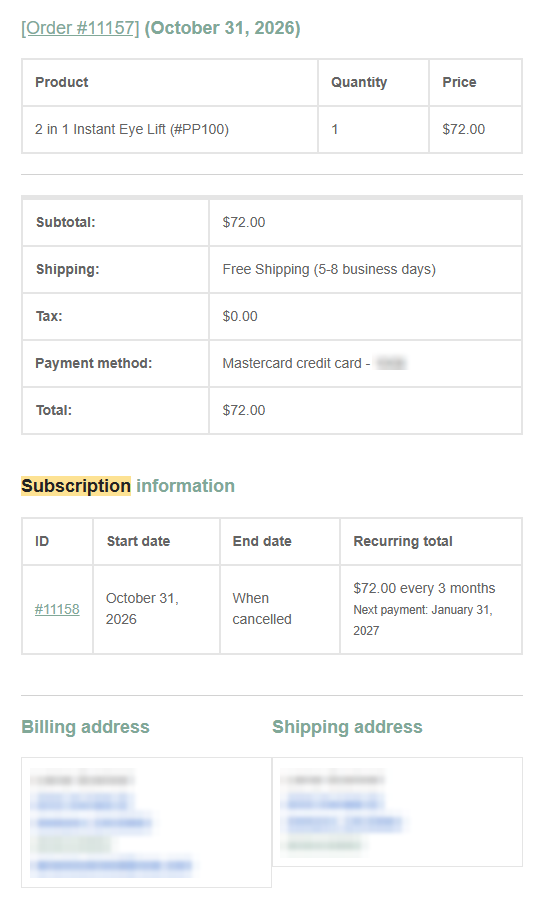
Custom import scripts created each customer on the new store, or matched them to an existing account, then built the subscription records with an on-hold status. New customer accounts kept their original password hash, so customers could sign in with the same password. Three more details matter here:
- On hold, not active. Nothing on the new store can renew until you say so.
- No emails. Turn off customer notifications so nobody gets a confusing “new subscription” message.
- A trace ID. We stored the original subscription ID on each new record (
_dw_subscription_id), so any record could be traced back.
At this point, the new subscriptions have no payment method, so the new store can’t charge anyone yet. That’s expected.
4. Copy the saved cards between Stripe accounts
Both stores kept their own WooPayments accounts. Our job was to prepare each record: we re-applied the customer’s original cus_ and pm_ IDs to the subscription, its parent order and the customer record on the new store. Through a support ticket, WooPayments then copied the saved cards from the old store’s Stripe account into the new one and attached the new card tokens.
This is the step you can’t do yourself, and the one that takes the longest to coordinate. Plan for it first.
5. Prove it with two live renewals
Before switching everyone, we tested with real money on two subscriptions:
- Put the matching subscriptions on the old store on hold.
- Activate the two copies on the new store.
- Confirm the renewal charged on the new store, and that nothing charged on the old one.
We kept a rollback plan for the test: if a charge failed on the new store, we’d reactivate the original on the old store. The first live renewal went through on October 28, and only then did we approve the card copy for everyone else. The second renewal went through before cutover.
6. Cut over the rest
With two clean renewals done, we switched the remaining subscriptions on October 30, in a set order:
- Hold the originals on the old store first.
- Sync next payment dates from the old store where they had changed (about 11 subscriptions), so no one gets charged for a cycle they already paid.
- Activate the copies on the new store.
Throughout, the number of subscriptions active on both stores at once stayed at zero.
What went wrong, and how we fixed it
The hard stretch wasn’t importing subscriptions. It was moving billing across two WooPayments accounts. These are the problems we hit, so you can plan for them.
| Problem | Why it happened | How we fixed it |
|---|---|---|
| Imported subscriptions had no usable payment method | Cards live in the old Stripe account until WooPayments copies them | Expected. We waited for the card copy instead of treating it as a failed import |
| WooCommerce wouldn’t set a clean on-hold status without a payment token | WooCommerce expects a payment method on a subscription | We forced the on-hold status so nothing could renew early |
| Copied cards wouldn’t attach | WooPayments matches copied cards using the original customer and payment IDs | We re-applied the original cus_ and pm_ IDs to the subscriptions, their parent orders and customer records, so WooPayments could match and attach the copied cards |
| Some next payment dates were out of date | The old store renewed some subscriptions after our export | We synced dates for about 11 subscriptions before activating, so no one was charged twice for one cycle |
| One subscription was on Braintree, not WooPayments | A card copy between Stripe accounts can’t cover another gateway | The customer has to add a card on the new store. As of cutover on October 30, they hadn’t yet |
The common thread: every problem showed up as a payment issue, not a subscription issue. Budget your testing time there.
The results
149 of 151 subscriptions moved to the new store with their cards attached, and customers didn’t have to do anything. The two exceptions:
- One customer paid through Braintree instead of WooPayments, so their card couldn’t be copied. They need to add a card on the new store, and as of cutover on October 30, they hadn’t yet.
- One subscription was imported, then left inactive because DermWarehouse had canceled it.
Because each subscription stayed billed on the original store until it was deliberately switched, we avoided double charges throughout the cutover.
The whole migration took nine days, from export and import on October 21 to cutover on October 30.
Migration checklist
Use this before you move a single subscription.
- Decide exactly which subscriptions and line items move, and which stay
- Confirm every product already exists on the new store, with matching SKUs
- Open the card-copy request with WooPayments early, since it gates everything after it
- Check for subscriptions on other gateways, like Braintree, and plan to contact those customers
- Export customer, billing, schedule and payment IDs (
cus_andpm_) from the old store, read-only - Import subscriptions on hold, with customer emails turned off and a trace ID on each record
- Re-apply the original payment IDs so WooPayments can attach the copied cards
- Run two live test renewals, with a rollback plan if one fails
- Hold originals, sync next payment dates, then activate the copies, in that order
- Confirm no subscription is active on both stores at the same time
When to bring in a developer
If you’re moving a handful of subscriptions, asking those customers to re-enter a card may be simpler. Once you’re moving dozens or hundreds, a failed renewal or a double charge costs you customers, and that’s when a planned migration pays for itself.
We ran our own WooCommerce store for 10 years, and this migration is one of many custom builds on our Custom WooCommerce Development page. If you’re facing a store split, a sale or a gateway change, talk to our developers before you export anything.
About this post: Written by Jason Parks, co-founder of The Media Captain, who owned DermWarehouse and Park Perfection during this migration. Austin San, the developer on our team who led the migration, provided the technical details and reviewed this post for accuracy.